Lemo TV IPTV Complete Setup Guide
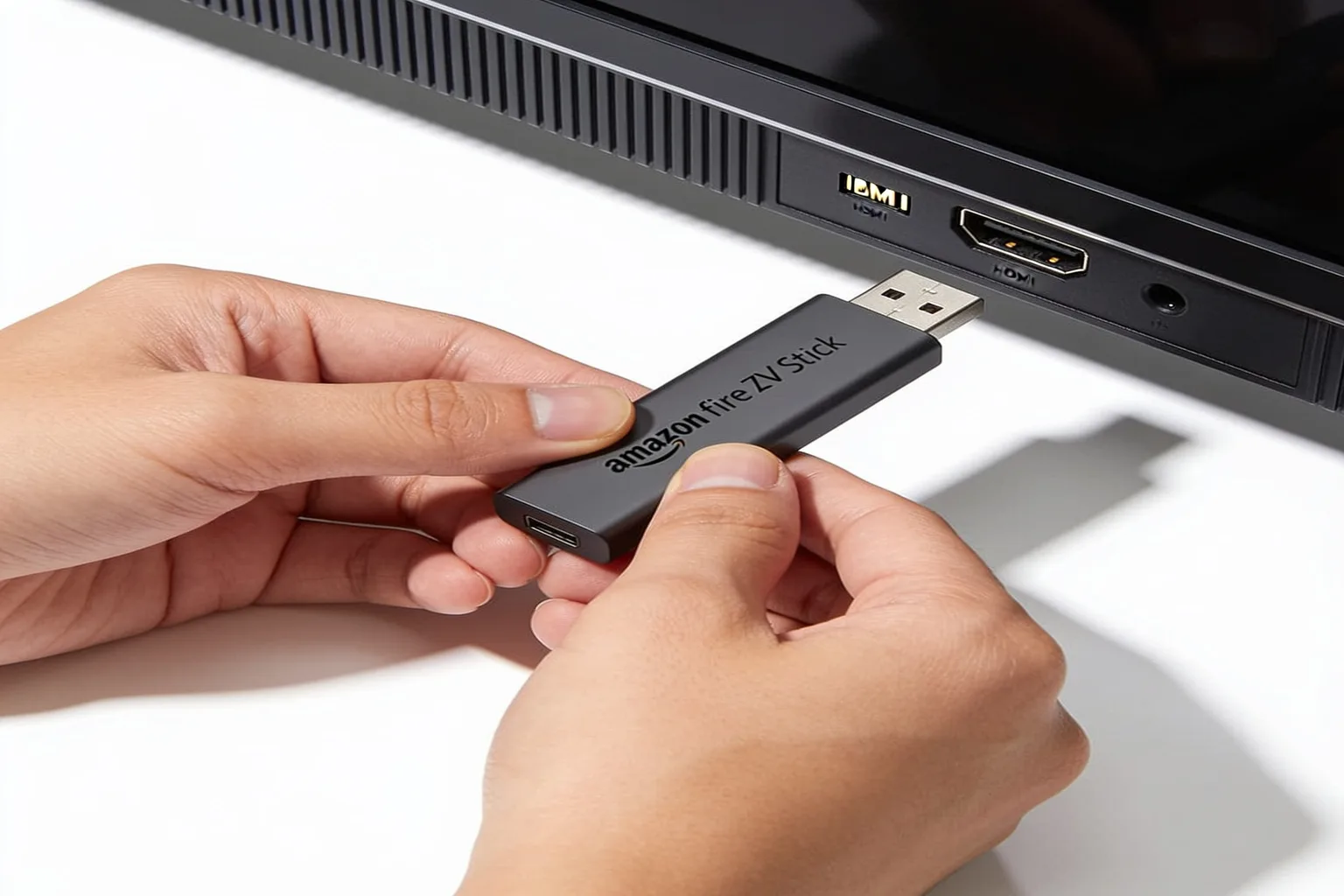
Getting started with Lemo IPTV should be the easy part of cutting the cord. The good news: a complete Lemo IPTV setup takes under five minutes on virtually every device people actually own. You don't need technical skills, a paid installer, or a stack of confusing forum posts. You need your account credentials (sent by email the moment you start a free trial or buy a plan) and the short walkthrough below for your specific device.
This guide covers the six device families Lemo IPTV supports: Amazon Firestick, Android (TV, phone, and tablet), iPhone and iPad, Samsung and LG Smart TVs, MAG boxes, and Windows or Mac computers. Jump to the section that matches your screen, follow the steps, and you'll be watching live sports and movies in 4K before your coffee gets cold.
Amazon Firestick (6 steps)
The Firestick is the most popular streaming stick for Lemo IPTV users, and the Lemo IPTV setup here is straightforward once you allow app installs.
- Go to Settings > My Fire TV > Developer Options.
- Enable "Install Unknown Apps" for the Downloader app.
- Open Downloader and enter code 6165033.
- Download and install the Lemo IPTV app.
- Open the app and enter your credentials (received by email).
- Start streaming — that's it.
Android TV / Phone / Tablet (4 steps)
Android is the simplest platform because the best player is right in the Play Store.
- Download IPTV Smarters Pro from the Google Play Store.
- Open the app and select "Add Playlist".
- Enter your Lemo IPTV credentials (URL, username, and password from your email).
- Start streaming.
iPhone / iPad (5 steps)
iOS setup uses the same player as Android, with one extra step to pick your video player.
- Download IPTV Smarters Pro from the App Store.
- Open the app and tap "Add User".
- Enter your Lemo IPTV credentials.
- Select your preferred player (VLC recommended).
- Start streaming.
Samsung & LG Smart TV (5 steps)
If you own a recent Samsung or LG set, you can run everything directly on the TV with no extra hardware.
- Open the Smart TV app store (Samsung Smart Hub or LG Content Store).
- Search for and install "IPTV Smarters" or "Set IPTV".
- Open the app and enter your Lemo IPTV credentials.
- Allow the necessary permissions.
- Start streaming.
MAG Box (3 steps)
MAG boxes are built for IPTV, so the Lemo IPTV setup is the shortest of any device.
- Go to Settings > System Settings > Servers.
- Enter your Lemo IPTV portal URL (from your activation email).
- Restart the box and start streaming.
Windows / Mac (4 steps)
Prefer watching on a computer? The desktop player works the same way on both operating systems.
- Download IPTV Smarters Pro for your OS (Windows or Mac).
- Install and open the application.
- Enter your Lemo IPTV credentials.
- Start streaming.
Recommended apps
Lemo IPTV works with the major IPTV players, so you're never locked into one app. For most people, IPTV Smarters Pro is the best overall choice — it's free, runs on every device above, and includes a clean EPG and catchup. TiviMate is the favorite for Android power users who want multi-playlist support. Perfect Player is a lightweight pick that runs well on older boxes, and GSE Smart IPTV is a solid cross-platform option, especially on iOS.
If you hit any snag during your Lemo IPTV setup, the fastest fix is to message support — real humans reply around the clock on WhatsApp, email, and live chat.
Setup FAQ
Do I need a VPN?
Can I use one account on multiple devices?
What if the app won't install?
Common setup issues and quick fixes
Even with a clean install, a few small things can trip people up during the first hour with Lemo IPTV. Here are the three we hear about most, and how to sort them out fast. For a deeper look at playback and connection problems, our troubleshooting guide walks through every fix in order, and the main setup page has device-by-device walkthroughs.
Wrong playlist URL
If no channels load after you enter your credentials, the playlist URL is almost always the culprit. Double-check that you copied the full link from your activation email with no trailing spaces, and that it begins with http://. A single dropped character breaks the entire list. When you paste into TiviMate or IPTV Smarters Pro, save and reopen the playlist to confirm it took. Still blank? The FAQ page covers credential formatting, and support can resend your details in minutes.
Audio out of sync
Audio drifting behind the picture usually means the player is defaulting to a format your device handles poorly. In IPTV Smarters Pro, open the player settings and switch the media player from the built-in option to VLC or ExoPlayer, then restart the stream. On Firestick, disabling audio passthrough in your device's display and sounds settings clears most sync issues. The change takes effect on the next channel you open.
EPG not loading
The electronic program guide can take 10 to 15 minutes to populate on a fresh install, because the app is downloading the full 7-day schedule for 24,000+ channels. Give it time before assuming it is broken. If it stays blank after an hour, confirm that your app's EPG source is set to the URL in your activation email and that you are running the latest app version. A clean reinstall with freshly entered credentials solves the remaining cases.